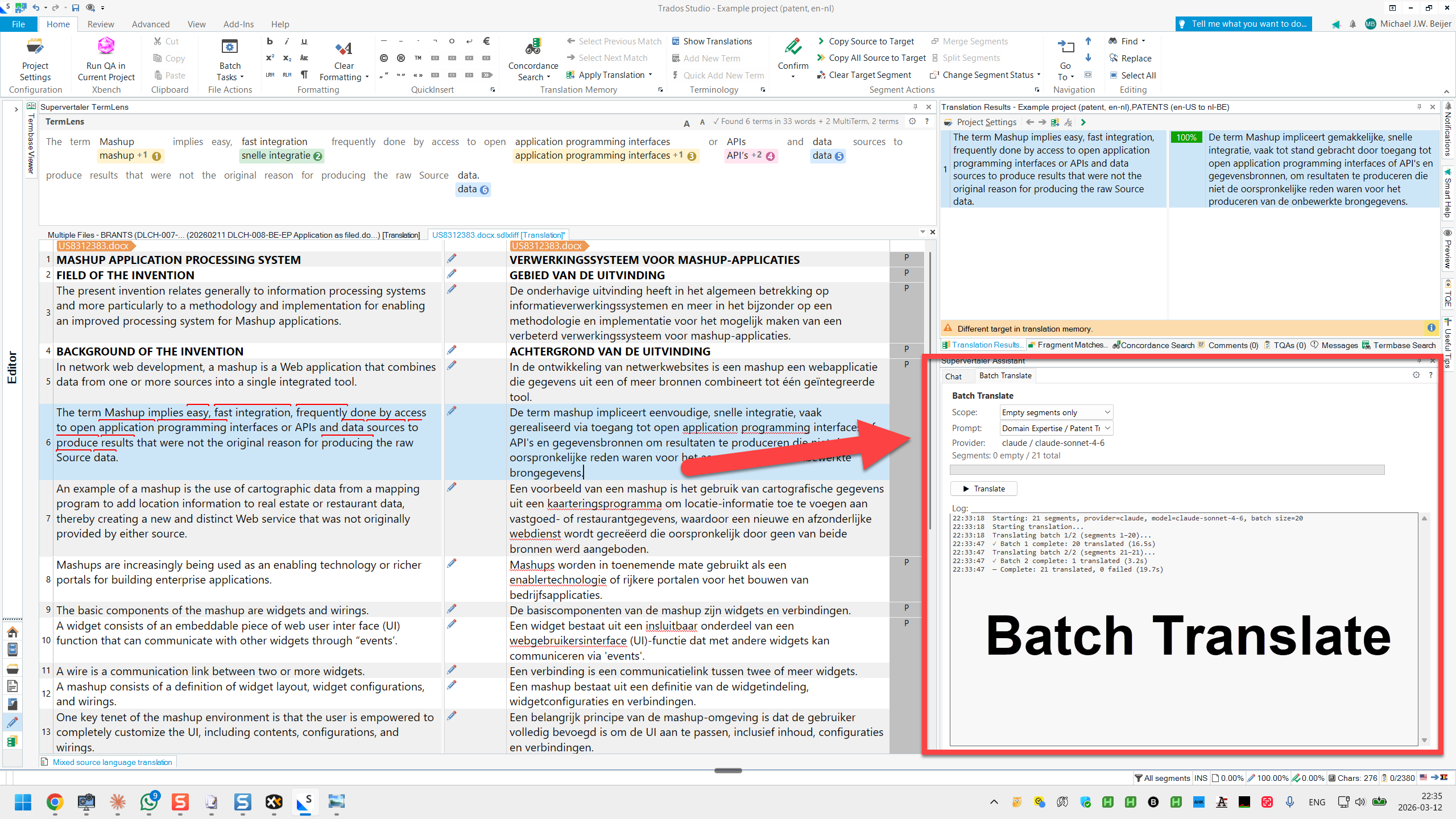
# Batch Translate
{% hint style="info" %}
You are viewing help for **Supervertaler for Trados** – the Trados Studio plugin. Looking for help with the standalone app? Visit [Supervertaler Workbench help](https://help.supervertaler.com).
{% endhint %}
Batch Translate lets you translate multiple segments at once using AI. It is located in the **Supervertaler Assistant** panel, on the **Batch Operations** tab.
{% hint style="info" %}
The Batch Operations tab also supports **Proofread** mode for AI-powered quality checking. See [AI Proofreader](https://supervertaler.gitbook.io/trados/features/batch-operations/ai-proofreader) for details.
{% endhint %}
### Starting a Batch Translation
1. Open the **Supervertaler Assistant** panel (View > Supervertaler Assistant)
2. Switch to the **Batch Translate** tab
3. Choose a **scope** from the dropdown
4. Choose a **prompt** from the prompt selector
5. Click **Translate**
### Scope
The scope dropdown controls which segments are translated:
| Scope | Description |
| ----------------------- | ---------------------------------------------------------------------- |
| **Empty Segments Only** | Translates segments that have no target text |
| **All Segments** | Translates every segment in the file |
| **Filtered Segments** | Translates only the segments currently visible after applying a filter |
| **Filtered Empty Only** | Translates empty segments within the current filter |
### Prompt Selection
Choose a prompt to guide the AI translation style and domain. The prompt selector shows:
* **Default Translation Prompt** – a general-purpose prompt that works well for most content types. Use it as-is or duplicate it in the Prompt Manager and customise it for your domain.
* **Custom prompts** – your own prompts created in the Prompt Manager
The **active prompt** for the current project is marked with a checkmark in the dropdown. When you open a project that has an active prompt set, it is automatically selected. See [Memory banks – Active Prompt](https://supervertaler.gitbook.io/trados/features/ai-assistant/super-memory/active-prompt) for how to set the active prompt.
{% hint style="success" %}
**Tip:** If you save a prompt with the same name as your Trados project, the dropdown will auto-select it whenever you open that project. For example, a prompt called "HAYNESPRO" will be auto-selected when working in a project called HAYNESPRO.
{% endhint %}
{% hint style="info" %}
For specialised fields (medical, legal, patent, etc.), create a custom prompt with domain-specific terminology rules and instructions. A tailored prompt is the single most effective way to improve translation quality.
{% endhint %}
### Provider and Model
The current AI provider and model are displayed below the prompt selector. Click the provider/model label to open a flyout menu where you can switch models instantly – the same menu available in the Chat tab. Alternatively, open the settings dialogue (gear icon in the TermLens header) and go to the **AI Settings** tab.
### Progress and Logging
During translation:
* A **progress bar** shows overall completion
* A **real-time log** displays the status of each segment as it is translated
* The **Stop** button aborts the batch at any time – segments already translated are kept
### Translate Active Segment (Ctrl+T)
Press **Ctrl+T** to translate the active segment instantly. This uses the same provider, model, and prompt as Batch Translate, so you can switch prompts or providers and immediately use them for single segments with Ctrl+T.
Ctrl+T is also available via right-click in the editor ("Translate active segment").
#### How it works
1. The active segment's source text is sent to the AI provider configured in AI Settings
2. The selected prompt (from the Batch Translate tab) is applied, along with termbase terms
3. The translation is written directly into the target cell
4. Inline tags (bold, italic, field codes, etc.) are preserved in the translation
### AI Context in Batch Translate
Batch Translate uses several context sources from your [AI Settings](https://supervertaler.gitbook.io/trados/settings/ai-settings) to improve translation quality:
* **Document content** – when enabled, all source segments are included in the system prompt so the AI can determine the document type (legal, medical, technical, etc.) and adapt its style accordingly. This is shared across all batches.
* **Termbase terms** – terminology from enabled termbases is injected into the prompt, including term definitions and domains when that option is enabled.
* **Custom prompts** – the selected prompt provides domain-specific translation instructions.
TM matches and surrounding segments are **not** included in Batch Translate – these are Chat & QuickLauncher features only. See the [AI Settings](https://supervertaler.gitbook.io/trados/settings/ai-settings) page for a full comparison table.
### Backup TMX
The **Auto-backup translations to TMX** checkbox is ticked by default. When enabled, Supervertaler writes every translated segment to a TMX file as it arrives from the AI. If Trados crashes mid-run, you can recover the completed translations without re-running the batch.
The TMX files are also useful outside of crash recovery – you can import them into any TM in Trados, memoQ, Wordfast, or any other CAT tool that accepts standard TMX.
Click **Open folder…** next to the checkbox to open the backup folder directly in Windows Explorer.
To disable backups for a particular run, simply untick the checkbox before clicking Translate.
#### How it works
* A new `.tmx` file is created at the start of each batch run.
* Every **10 translated segments**, the file is rewritten in full – so at most 10 segments are lost in a crash.
* The file is written atomically (via a temp file + rename) so it is always a valid, complete TMX – never a partial or corrupt file.
* At the end of a completed or cancelled run, the file is flushed one final time.
#### Where the files are saved
```
C:\Users\\Supervertaler\trados\batch_backups\
```
Files are named by timestamp and project name, for example:
```
batch_2026-04-10_14-23-01_YAXINCHENG.tmx
```
The exact path is also printed to the **Batch Translate log** at the start of each run.
#### Recovering after a crash
1. Reopen Trados Studio and your project.
2. Open your TM in **Trados Translation Memories** (or via the project's TM settings).
3. Use **Import** → browse to the backup `.tmx` file → import.
4. Run **Pre-translate** on your project to apply the recovered translations from the TM.
{% hint style="info" %}
Backup files are **not deleted automatically**. Tidy up the `batch_backups` folder occasionally if disk space is a concern, or keep them as a translation archive.
{% endhint %}
### Clipboard Mode
If you prefer to use a web-based AI (ChatGPT, Claude, Gemini, etc.) instead of an API, tick the **Clipboard Mode** checkbox. This replaces the Provider and Translate button with **Copy to Clipboard** and **Paste from Clipboard** buttons. Supervertaler builds a complete, ready-to-use prompt – including your selected prompt, terminology, document context, and numbered bilingual segments – and copies it to your clipboard. See [Clipboard Mode](https://supervertaler.gitbook.io/trados/features/batch-operations/clipboard-mode) for full details.
### Tips
#### Translate Empty Segments First
Start by translating only the empty segments (scope: **Empty Segments Only**). Review the results, then fix any issues. This avoids overwriting segments you have already edited.
#### Generate a Domain-Specific Prompt Automatically
Click **AutoPrompt…** next to the prompt dropdown. Supervertaler analyses your entire document, detects the domain, and uses AI to generate a comprehensive translation prompt with terminology rules, style guidelines, and anti-truncation controls – all tailored to your specific project. See [AutoPrompt](https://supervertaler.gitbook.io/trados/features/batch-operations/generate-prompt) for details.
#### Create Domain-Specific Prompts Manually
For specialised content, you can also duplicate the Default Translation Prompt in the Prompt Manager and add domain-specific instructions (terminology rules, style preferences, formatting requirements). A tailored prompt is the single most effective way to improve translation quality.
#### Combine with TM
If your project has a translation memory, TM matches are shown alongside AI translations. You can pre-translate with TM first (using Trados's built-in batch tasks), then use Batch Translate to fill in the remaining empty segments with AI.
#### Review After Batch
AI translation is a first draft. After a batch run:
1. Review each translated segment
2. Fix any terminology or style issues
3. Confirm segments with **Ctrl+Enter** (Trados default)
***
### See Also
* [Clipboard Mode](https://supervertaler.gitbook.io/trados/features/batch-operations/clipboard-mode)
* [AutoPrompt](https://supervertaler.gitbook.io/trados/features/batch-operations/generate-prompt)
* [AI Proofreader](https://supervertaler.gitbook.io/trados/features/batch-operations/ai-proofreader)
* [Supervertaler Assistant](https://supervertaler.gitbook.io/trados/features/ai-assistant)
* [TermLens](https://supervertaler.gitbook.io/trados/features/termlens)
* [SuperMemory](https://supervertaler.gitbook.io/trados/features/ai-assistant/super-memory)
* [Keyboard Shortcuts](https://supervertaler.gitbook.io/trados/reference/keyboard-shortcuts)
---
# Agent Instructions: Querying This Documentation
If you need additional information that is not directly available in this page, you can query the documentation dynamically by asking a question.
Perform an HTTP GET request on the current page URL with the `ask` query parameter:
```
GET https://supervertaler.gitbook.io/trados/features/batch-operations/batch-translate.md?ask=
```
The question should be specific, self-contained, and written in natural language.
The response will contain a direct answer to the question and relevant excerpts and sources from the documentation.
Use this mechanism when the answer is not explicitly present in the current page, you need clarification or additional context, or you want to retrieve related documentation sections.