# MultiTerm Support
{% hint style="info" %}
You are viewing help for **Supervertaler for Trados** – the Trados Studio plugin. Looking for help with the standalone app? Visit [Supervertaler Workbench help](https://help.supervertaler.com).
{% endhint %}
TermLens automatically detects MultiTerm termbases (`.sdltb` files) attached to your active Trados project and displays their terms alongside your Supervertaler terms.
### How It Works
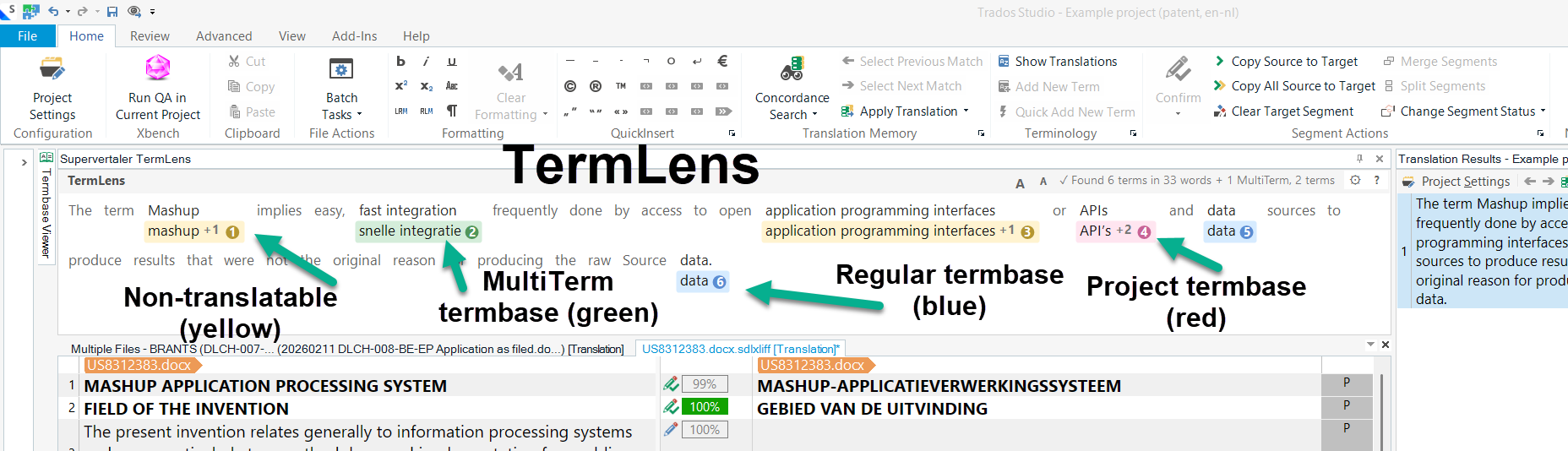
When you open a project in Trados Studio that has MultiTerm termbases attached, TermLens reads those `.sdltb` files and loads all term pairs into its matching engine. MultiTerm terms appear as **green chips** in the TermLens panel, right next to the blue, pink, and yellow chips from your Supervertaler termbases.
There is nothing to configure. If your Trados project has MultiTerm termbases attached and **enabled** (via **Project Settings > Language Pairs > Termbases**), TermLens picks them up automatically. Termbases with the **Enabled** checkbox unchecked in Trados are ignored.
#### Colour coding
| Colour | Meaning |
| ------------ | ---------------------------------------------------- |
| **Blue** | Regular Supervertaler termbase match |
| **Pink** | Project termbase match (higher priority) |
| **Yellow** | Non-translatable term (source = target) |
| **Green** | MultiTerm termbase match (`.sdltb`) |
| **Lavender** | Abbreviation match (matched via source abbreviation) |
Green chips behave like any other TermLens chip – click to insert, or use **Alt+1** through **Alt+9** to insert by number.
### Read-Only
MultiTerm termbases are **read-only** in TermLens. You cannot add, edit, or delete terms in a MultiTerm termbase from the TermLens panel. To manage MultiTerm terms, use Trados Studio's built-in MultiTerm interface.
When you right-click a green MultiTerm chip, the Edit, Delete, and "Mark as Non-Translatable" options are not shown.
### Auto-Refresh
TermLens monitors your MultiTerm termbases for changes:
* **Term changes** –when you add or edit terms using Trados's native MultiTerm interface, TermLens detects the file change on the next segment navigation and reloads automatically.
* **Config changes** –when you enable or disable a MultiTerm termbase in **Project Settings > Termbases**, TermLens detects the change within a few seconds and updates the panel automatically – no segment change needed.
### MultiTerm Termbases in Settings
MultiTerm termbases appear at the bottom of the termbase list in the **Supervertaler Settings** dialogue (gear icon > TermLens tab). Each one is labelled with **\[MultiTerm]** and has a light green background to distinguish it from Supervertaler termbases.
| Toggle | Behaviour |
| ----------- | ------------------------------------------------------------------------------ |
| **Read** | Controls whether this termbase's terms appear in TermLens. Uncheck to hide it. |
| **Write** | Always disabled –MultiTerm termbases are read-only in TermLens |
| **Project** | Always disabled –only Supervertaler termbases can be the project termbase |
To add or remove MultiTerm termbases from your project, use Trados Studio's **Project Settings > Language Pairs > Termbases**.
### MultiTerm and AI Terminology Injection
Your MultiTerm termbases are loaded and used for **AI terminology injection**. This means the AI Assistant, Batch Translate, and Ctrl+T all receive your MultiTerm terminology in their prompts, helping the AI use the correct approved terms – as long as the termbases are enabled in Trados Project Settings.
### Technical Details
TermLens reads `.sdltb` files directly using the JET 4.0 database driver built into Windows. This is the same driver that MultiTerm itself uses. If the JET driver is not available (uncommon on modern Windows), TermLens falls back to Trados's terminology provider API for per-segment lookups.
Because the access is read-only, there is no risk of data corruption. TermLens opens the `.sdltb` file in shared read mode, so MultiTerm and Trados can continue to use it simultaneously.
### Troubleshooting
#### MultiTerm terms not appearing
1. **Check the Trados Enabled checkbox** –open **Project Settings > Language Pairs > Termbases** and make sure the termbase's **Enabled** checkbox is ticked
2. **Check the Read toggle** –open Supervertaler Settings and make sure the MultiTerm termbase's Read checkbox is enabled
3. **Check languages** –the termbase's source and target languages must match the current project's language pair
#### Terms added in MultiTerm not updating
* Navigate to a different segment –this triggers the auto-refresh check
* If terms still do not appear, close and reopen the settings dialogue to force a full termbase reload
***
### See Also
* [TermLens](https://supervertaler.gitbook.io/trados/features/termlens)
* [Termbase Management](https://supervertaler.gitbook.io/trados/terminology/termbase-management)
* [TermLens Settings](https://supervertaler.gitbook.io/trados/settings/termlens)
* [Troubleshooting](https://supervertaler.gitbook.io/trados/reference/troubleshooting)
---
# Agent Instructions: Querying This Documentation
If you need additional information that is not directly available in this page, you can query the documentation dynamically by asking a question.
Perform an HTTP GET request on the current page URL with the `ask` query parameter:
```
GET https://supervertaler.gitbook.io/trados/features/multiterm-support.md?ask=
```
The question should be specific, self-contained, and written in natural language.
The response will contain a direct answer to the question and relevant excerpts and sources from the documentation.
Use this mechanism when the answer is not explicitly present in the current page, you need clarification or additional context, or you want to retrieve related documentation sections.